
Updated October 2026: code, tooling, and package versions refreshed for current releases.
In this article we will learn how can we build a NodeJS and express application using TypeScript, which is being treated as a JavaScript replacement and many NodeJS applications have already started shifting their code from JavaScript to TypeScript. So its just a matter of time for TypeScript to become the de facto standard for building NodeJS applications.
Also checkout this article to learn how to Implement CRUD in NodeJS with Express and MongoDB.
Prerequisites
Following are the things you will need before starting this tutorial
- Visual Studio Code and NodeJs (version 24 LTS or newer), installed on your system
- basic understanding of NodeJs and Express
What is TypeScript?
TypeScript is JavaScript with syntax for types. TypeScript is a strongly typed programming language that builds on JavaScript, giving you better tooling at any scale.
https://www.typescriptlang.org/
Typescript is a superset of JavaScript, which means it includes everything which JavaScript includes with some additional features on top, like static type checking, which is like when we define a variable we can tell what sort values it can hold for example a string or a number or boolean. Same goes for functions we can define what sort of values function will accept and what will be the return type. This is the main feature of this language and hence the name TypeScript.
TypeScript also helps in identifying errors and bugs during compilation and before code runtime like it can alert you to misspelled properties and functions, detect passing the wrong number of arguments and the wrong types of arguments to functions. TypeScript can also provide smarter autocomplete suggestions. This helps in speeding up the development process especially when we are building a big application involving a large codebase.
Where as in JavaScript we have to use external tools like ESLint and extensive test cases to cover the same thing.
Hence typescript adds an extra safety and enhances productivity
If you already know JavaScript, then there is no learning curve to know TypeScript, just a little bit of added features.
Getting started with TypeScript
To get started, first we need to install it, use below command to install TypeScript globally in your system. This installs TypeScript 7.0, which ships a native compiler written in Go. It is much faster than the older JavaScript-based compiler, but you still use the same tsc command.
npm install -g typescript
After running this command we get access to tsc command which runs typescript compiler, run the below command to check the version of TypeScript installed in your system. You should see Version 7.0.2 or newer.
tsc --version
Now let's start writing some TypeScript code, create a file named index.ts with following code inside
//index.ts file

const greeting : string = 'Hello World!!'
console.log(greeting)
Here we can see, we are using static type to define greeting. Now this typescript code cannot run anywhere, like in browser or NodeJS, so what we do is convert this typescript code to JavaScript code using typescript compiler. So we run the below command
tsc index.ts
Now this command will create index.js file in the same directory containing the following code, which we can run in our browser or node.
//index.js file

const greeting = 'Hello World!!';
console.log(greeting);
Here we see that we get equivalent JavaScript code for our typescript. We also notice that the types are gone. Older versions of the compiler defaulted to an ES5 output with var, but TypeScript 7 defaults to a modern JavaScript target, so we get const without any changes. We can still control this behaviour with the help of tsconfig.json file.
Creating a Typescript config file
We can use the below command to generate tsconfig.json file
tsc --init
Now you will get tsconfig.json file in your root folder, which will contain some values in it, most of which will be commented. We don't have to worry about each and every option listed in the file, but only few.
The most important setting is the target, which controls which version of JavaScript the compiler emits. TypeScript 7 already defaults to a modern target, but you can set it explicitly. For example, ESNext tells the compiler to use the latest flavour of JavaScript it supports.
Let's give it a try, after setting it and hitting tsc command to recompile the code, we should see the below code in index.js file.
//index.js file

const greeting = 'Hello World!!';
console.log(greeting);
As we can see, the output uses const, because the compiler is now emitting modern JavaScript. Newer TypeScript versions also enable strict mode by default, so we get stricter type checking without any extra configuration.
Using watch flag
Now to avoid using tsc command to recompile our typescript code every time we make a change, we can use the following command which will constantly watch our ts file for changes and compile it automatically.
tsc index.ts --watch
On running the command, you should see following in your terminal
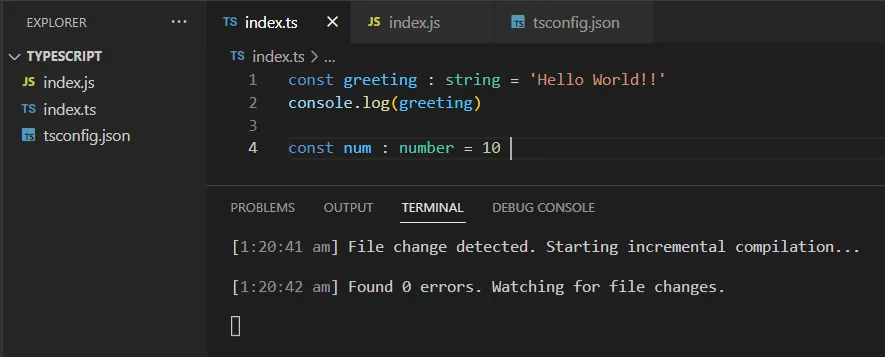
This command will also show any errors in our code in real time as follows.
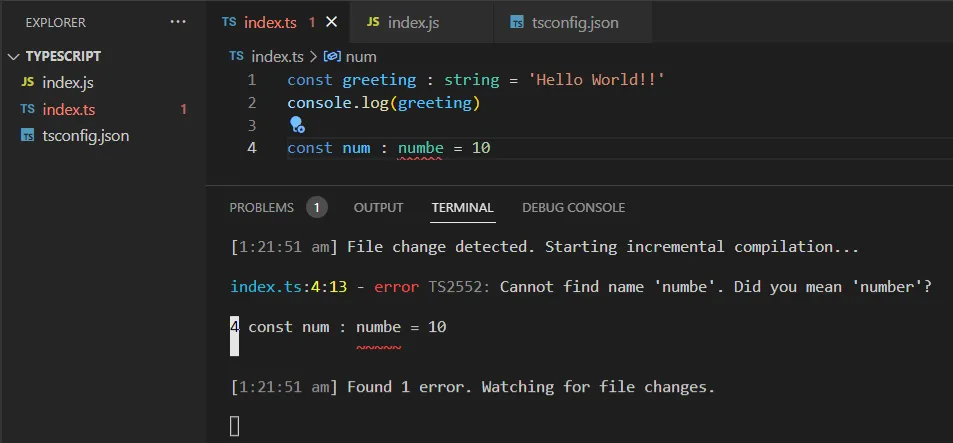
Note: TypeScript 7 does not allow file arguments like index.ts when the current folder already has a tsconfig.json file. If you get that error, add the --ignoreConfig flag, for example tsc index.ts --watch --ignoreConfig.
Running TypeScript directly with tsx
Now it is sort of annoying, in order check our typescript code output we should first compile it to JavaScript and then run that JavaScript file. To avoid this step we can make use of a package called tsx. It runs TypeScript files directly, and it is actively maintained. We will use npx so we do not need a global install. Note that ts-node, which was popular in older tutorials, depends on the TypeScript programmatic API, and TypeScript 7 does not ship that API yet, so we will not use it here.
npx tsx index.ts
After running this command, we can see the output of our TypeScript code without creating any JavaScript file.
This command does not create any js file in our root directory as well.
If you are on Node.js 24 or newer, you can also run simple TypeScript files with node index.ts and no extra package. Node strips the type annotations at runtime, but it does not type-check the code and it does not read tsconfig.json. This works for code that only uses erasable TypeScript syntax, such as type annotations, so features like enums and parameter properties need tsx or the compiler.
Building NodeJS Express App with TypeScript
Now that we have covered the basics of typescript, let's start building a NodeJS and express application.
Let's initialize a NodeJS application using the below command
npm init
This will create a package.json file in project folder.
Bootstrapping the application
Let's also create tsconfig.json file, just like we did above. For a Node.js app with TypeScript 7 we will set the following options. TypeScript 7 defaults module to esnext, and the older moduleResolution: "node" setting is no longer supported, so we use nodenext instead, which follows Node.js module rules. We also turn on strict mode explicitly so it is visible in the file.
{
  "compilerOptions": {
    "target": "esnext",
    "module": "nodenext",
    "strict": true,
    "rootDir": "./src",
    "outDir": "./build",
    "types": ["node"],
    "skipLibCheck": true
  },
  "include": ["src"]
}
Here we are specifying where our ts files will sit in "rootDir" and where should compiler store the js files which will be "outDir" value. TypeScript 7 defaults rootDir to the project folder, so we set it to ./src to keep the build output in build/ with the same structure. The types setting loads the Node.js type definitions, and include limits the compiler to our source folder. Rest all values we can leave as it is.
let's start by installing the following dependencies
npm install express
npm install -D typescript tsx
Express 5 is the current major version of Express, and it requires Node.js 18 or newer. We install express as a normal dependency, and typescript and tsx as dev dependencies. Here we will use tsx to watch our files and automatically restart the server whenever we make a change.
Note: we can also use nodemon instead of tsx. It still works, but it needs an extra command to run TypeScript files, so tsx is simpler for this setup.
Using Typescript with packages
To get access to type definitions for any package we have the following command
npm install -D @types/<packagename>
Not all packages will have @types. We can identify if a package has type definitions by looking for the DT badge on its npm page, which means its TypeScript declarations are provided by an @types package.
We should now install type definitions for node and express using the below command
npm install -D @types/node @types/express
The @types/express package is for Express 5, and @types/node should match the Node.js version you run, which is Node.js 24 in this article.
Adding start, dev and build scripts
Also let's add the following scripts in package.json file
{
  "scripts": {
    "start": "node build/app.js",
    "dev": "tsx watch src/app.ts",
    "build": "tsc -p ."
  }
}
Here we have defined three scripts, first one is start script which will run our built JavaScript file, next is dev script which we will use in development to run the server with tsx watch, which restarts it whenever our files change, and build script to compile typescript code to JavaScript.
Now our package.json file looks like as follows
{
  "name": "typescript",
  "version": "1.0.0",
  "description": "",
  "main": "index.js",
  "scripts": {
    "start": "node build/app.js",
    "dev": "tsx watch src/app.ts",
    "build": "tsc -p .",
    "test": "echo \"Error: no test specified\" && exit 1"
  },
  "author": "",
  "license": "ISC",
  "dependencies": {
    "express": "^5.3.0"
  },
  "devDependencies": {
    "@types/express": "^5.0.6",
    "@types/node": "^24.19.2",
    "tsx": "^4.23.15",
    "typescript": "^7.0.2"
  }
}
With this we are done with our configurations and setup.
Building Express app with typescript
Let's now create a new app.ts file in src folder with the following code.
// src/app.ts file

import express, { type Application, type Request, type Response } from 'express'

const app : Application = express();

app.get('/', (req: Request, res: Response) => {
    res.send('Hello from express')
})

app.get('/async', async (req: Request, res: Response) => {
    const message = await Promise.resolve('Hello from an async route')
    res.send(message)
})

app.listen(8000, () => {
    console.log('listening to requests on port 8000')
})
Here we have coded a simple express server. You will notice that how we are using types here for different express objects. Also here we can import syntax instead of require to add dependencies into a file. We use type before the names Application, Request, and Response because they only exist at compile time.
The /async route shows a nice feature of Express 5. If an async handler throws an error or returns a rejected promise, Express passes that error to its error handling automatically, so we do not need a try/catch block or a manual next(err) call in every route.
Now to run this in development, as we have defined dev script, we can use the following command
npm run dev
The terminal should show that the server is listening on port 8000.
Open http://localhost:8000 in your browser and you will see the text Hello from express.
Now we can build our code using the below script

Now when we do this, as we have defined "outDir" value as "./build" in tsconfig.json, we will get a build folder created with app.js file inside
Our app.js file is now compiled. Now we can execute this build file with our start script as shown below
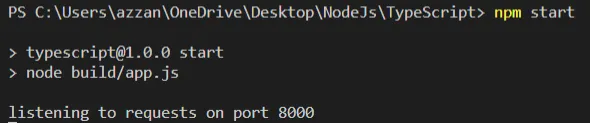
Here we see we get the same message as we did while executing the TypeScript server code, and the browser shows the same Hello from express response.
This completes our implementation of using TypeScript in NodeJS Express app.
Summary
In this article we just covered the very basics of getting started with typescript as a backend developer. We learned what is typescript and how can we use it to build NodeJS and express application. We learned how we can configure typescript using tsconfig.json file and different ways to compile and run it in NodeJS, including tsx and Node.js built-in type stripping.
You can also checkout full source for this implementation here.